


Import dates from a photo, PDF or list
Turn a flyer, a screenshot, the promoter's PDF or a pasted date list into a draft tour you check before anything is created.
On this page
Most runs start life somewhere else: a tour poster, a screenshot of a group chat, a PDF from the booking agent, an email with the dates in it. Instead of typing every date in by hand, you can give that to Tourouter. It reads the dates, cities and venues into a draft, which is a tour that does not exist yet. You check the draft, fix anything it got wrong, and only then create the tour.
What you can import from
- Photos and screenshots: a flyer, a poster on a wall, a screenshot of a message. JPEG, PNG, WebP and HEIC all work.
- PDFs: the itinerary the agent or promoter sent.
- Pasted text: a date list copied out of an email, a note or a spreadsheet column.
You can add up to 10 files at once, 10 MB each, 30 MB in total, and up to 20 PDF pages. You can mix files and pasted text in the same import.
Import on the phone
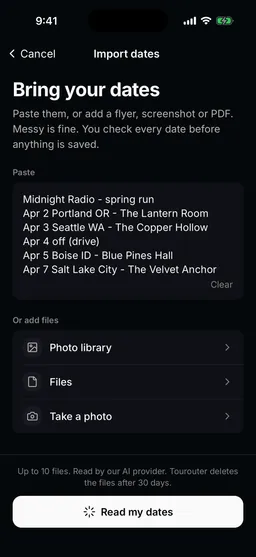
- Tap the tour name at the top of the screen, then All tours, then Import an itinerary. (Making a new tour? Its sheet also has Have your dates somewhere already?) The Bring your dates screen opens.
- Type or paste the dates under Paste.
- Or, under Or add files, pick where the itinerary is:
- Photo library for flyers, screenshots and photos
- Files for PDFs and saved images
- Take a photo to photograph a printed itinerary
- Tap Read my dates.
- Wait while it reads. You can tap Back to Tours and do something else. The draft waits for you under Waiting for review on the Tours screen.
- Check the draft (see below), then tap Create tour. The button counts the dates, like Create tour with 7 dates.
Share a flyer straight from Photos, Files or Mail
On the phone you do not have to open Tourouter first. If the flyer is already in your photos or the PDF is attached to an email, send it to Tourouter from there.
- Open the photo, PDF or email attachment.
- Tap the share button and choose Tourouter. You can share up to 10 files at once.
- Wait for Saved to Tourouter, then open the Tourouter app.
- Tap your picture at the top to open Settings, then Shared itineraries. (It is also at the bottom of All tours.)
- If you are on more than one band, choose the band the tour is for under Send to. Picking a band switches the app to it.
- Under Waiting, tap Review on your files. The import screen opens with them already added.
- Tap Read my dates.
Shared files wait on your phone for up to 30 days. If you change your mind, tap Remove, then Remove again to confirm.
Import on the web
- Open Library, then Tours, and click Import an itinerary. (The New tour sheet also has Have your dates somewhere already?) The Bring your dates page opens.
- Paste the dates as text under Paste, or add files under Or add files in any of three
ways:
- click Choose files to pick them from your computer
- drag photos or PDFs onto Drop photos or PDFs here
- copy an image and paste it straight into the page
- Wait for each file to show Ready to read.
- Click Read my dates. An import always makes a new tour.
- Wait while it reads. It is usually under a minute. You can click Back to Tours and do something else. The draft waits in Tours under Waiting for review.
- Check the draft (see below), then click Create tour with your number of dates.
Check the draft before you create the tour
The draft is where you catch mistakes, and nothing is written to a tour until you finish it. It opens as Review on the phone and Check your dates on the web.
- Confirm the year if the draft asks What year is this tour? Enter the year and apply it. If the run crosses New Year, choose whether the later dates continue into the next year.
- Name the tour. A tour name is required. On the phone, tap the name at the top (it reads Name your tour until you do). On the web, click the pencil next to Name your tour.
- Go through every date. Tap or click a date under Needs a look or Looks right to
open it. On the phone, the arrows at the bottom move to the date before or after. For each date
you can fix:
- the date
- the day type: Show, Travel or Day off
- the venue, city, state or region, and country
- the booking status: Planning, Hold or Confirmed
- notes
- Add or remove dates with Add date, or remove one with Remove date in its details.
- Read any notes from the reader. If it was unsure about something, it says so at the top of the draft. Check those dates against the original.
- On a show, you can search under Venue for the venue’s address. On the phone, the search covers Tourouter’s venues and Google Maps, or tap Type an address. On the web, search for venues already in Tourouter, or type the address. This is optional and you can add it later.
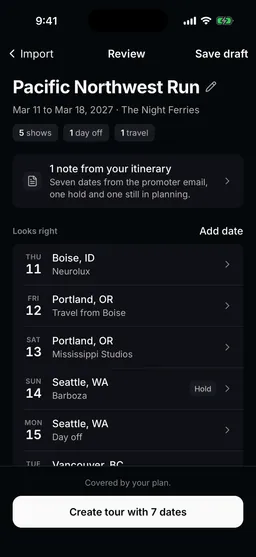
Not ready to finish? Tap Save draft. On the phone the draft waits on the Tours screen under Waiting for review. On the web it waits in Library, Tours, under Waiting for review.
What happens when you create the tour
- The tour is created as Confirmed, like a tour you make by hand. Nothing is sent, nobody is invited and nobody is notified.
- On the phone you land on the new tour’s Tour tab. On the web you land on its Dates.
- From there you add the rest: schedules, lodging, contacts and deal terms.
The original files are kept for 30 days so you can check the draft against them. After that they expire, and your draft and your tour stay exactly as they are.
What the import does not do yet
Who can import
Owners, admins and editors on the band can import a tour. Crew and read-only members cannot. Importing is free, like the rest of planning.
When you tap Read my dates, your files and text are sent to the AI service Tourouter uses to read the itinerary. You review and correct every date before a tour is created.
Still stuck?
Email scott@tourouter.com and a person who works on Tourouter will write back. Tell us which screen you were on and whether it was the phone or the web.
Planning a tour is free, with no time limit.
Start planning free