


Tour Packages: one tour, several bands
Put two or more bands on the same run. Everyone shares the dates, venues and day sheets, and each band keeps its own crew, merch and money.
On this page
When a headliner takes a support act out, or two bands co-headline, they are on the same run: the same cities, the same venues, the same load in times. A Tour Package lets them run that as one tour instead of two copies that drift apart.
Two words you will see:
- The host band made the tour and owns it. It invites the others and takes the tour on the road.
- A guest band was invited onto the host’s tour. Guest bands join free.
A Tour Package is not a different kind of tour. Any tour becomes one the moment a second band accepts an invitation. Until then it is a normal tour, and nothing you recorded before is shown to anyone new.
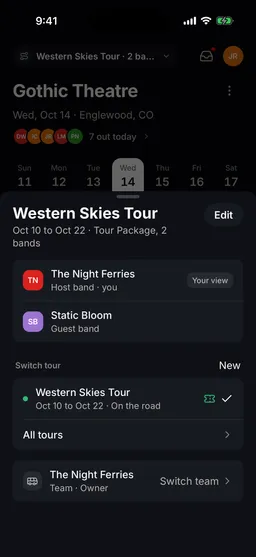
Invite another band
You can invite a band from the phone app or the web. Only the host band can invite, and only someone who can edit the tour.
- Tap the tour name at the top of the screen, then Edit.
- Under Tour Package, tap Invite a band.
- Enter the Email of someone in the other band, usually their tour manager.
- Add a Phone number if you want them to get a text as well. This is optional.
- Under Access on this tour, choose:
- Full lets their editors change the shared schedule.
- Read-only lets them see everything and change nothing.
- Tap Send invite.
The invitation now shows under Tour Package with Invite pending until they accept. If they already use Tourouter they can bring their existing band. If not, accepting creates a band for them.
- Open Settings in the left rail, then Tour settings.
- Under Tour Package, click Invite a band.
- Enter the Email of someone in the other band, usually their tour manager.
- Add a Phone number if you want them to get a text as well. This is optional.
- Under Access on this tour, choose Full or Read-only.
- Click Send.
On the web the invitation shows under Tour Package with Invite pending until they accept.
Accept an invitation
The other band gets an email titled with your band’s name, saying you invited them on tour, and a text too if you added a number. The link in it explains the invitation and opens the app.
- Install Tourouter if you do not have it, and sign up or log in with the email address the invitation was sent to. That address is how the invitation finds you.
- Tap your picture at the top of the screen to open Settings. The invitation is waiting under Tour Invitations.
- Tap it to see the tour, its dates and what you get.
- Tap Join the tour. Or tap No thanks to turn it down.
If the app says the invitation is for someone else, you are logged in with a different email address. Log out and log back in with the address the invitation was sent to.
What everyone shares, and what stays yours
Shared with every band on the tour:
- The dates, the schedule for each day, venues and lodging.
- The day sheet. When it goes out, each band’s own list gets it.
- Contacts you attach to a day, so everyone can call the promoter or the venue.
- Any expense or revenue row marked as shared.
Kept to your own band:
- Your crew and the people on your touring party.
- Your merch money. Merch is private by default on every tour.
- Any expense or revenue row marked as private. Private rows show a lock.
- Your own settlement money once it is posted to your Money.
The guest list for each show is run by the host band.
A shared row still belongs to the band that recorded it. The other bands can see it, and only the band that recorded it can change or delete it.
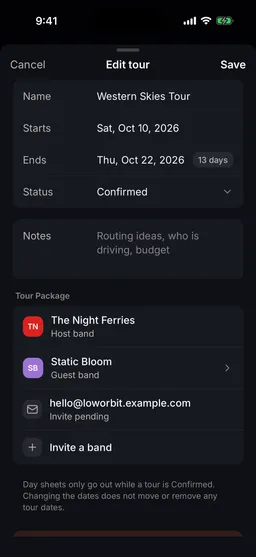
Money on a Tour Package
On a Tour Package, the phone app’s Money tab has two views at the top. On the web, the same two views sit at the top of Money.
- Tour Package shows only the shared money that every band sees: what promoters paid the package, Your share of it, and Shared costs with who paid each one.
- Your band’s name shows your own money, shared and private together.
No total ever mixes the two, so a number you see never includes money you cannot open.
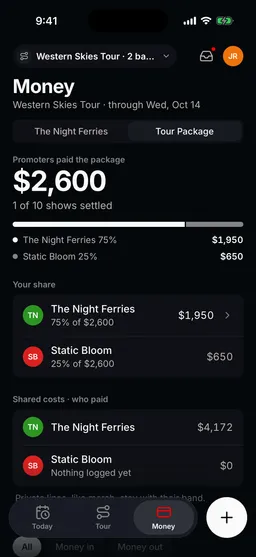
Choose who can see an expense or revenue row
- On Money, tap + in the bottom bar to add a line, or tap one of your own lines.
- Tap Who can see this and choose Shared with the Tour Package or Only your band.
- Tap Save.
- On Money, add a line or click one of your own lines.
- Click Who can see this and choose Shared with the Tour Package or Only your band.
- Click Save.
If you record that another band paid for something, the row is shared automatically, so they can see the expense that names them.
Settle a show that was paid as a package
When the host settles a show, the settlement asks How was the show paid?
- Promoter paid each band. Everyone settles their own deal. A guest band taps Settle your own deal on that day.
- Promoter paid us for the package. The host collects the total and pays the other bands. Add each band under Splits with its share. When you settle, each band’s share is posted to that band’s own Money as a private row.
With the package option you also choose Who sees the total?: Every band on the bill lets them check their share against the total, and Only us keeps the total to the host.
The full walkthrough is in Settle a show.
Change a band’s access, or remove a band
- Tap the tour name at the top, then Edit, and find Tour Package.
- Tap the band.
- Change Access on this tour to Full or Read-only. Lowering access never touches what they already wrote.
- Or tap Remove from tour, then Remove. They lose the shared schedule for this tour. Their own band, crew and money are untouched.
- Open Settings, then Tour settings, and find Tour Package.
- Click the band.
- Change Access on this tour to Full or Read-only.
- Or click Remove from tour, then Remove.
To cancel an invitation nobody has accepted yet, tap it under Tour Package in Edit tour and choose Cancel invite. On the web, click Cancel invite next to it under Tour Package.
The shared dates on the web
The web app follows the same rules about who can see what. A guest band with Full access can change the shared schedule from the tour’s Dates, and only the host can delete a date. Other bands’ private rows never appear.
Who pays for a Tour Package
The host band takes the tour on the road with its Tour Pass or plan, like any other tour. Guest bands are free: being on someone else’s bill never asks you to pay. See pricing for the plans.
Still stuck?
Email scott@tourouter.com and a person who works on Tourouter will write back. Tell us which screen you were on and whether it was the phone or the web.
Planning a tour is free, with no time limit.
Start planning free