


Create a tour and add your dates
Start a tour, put the run in one city at a time or paste the list, attach venues, and fill in each day with times, hotels and notes.
On this page
A tour in Tourouter is one run: a name, the dates, and everything that happens on each of those dates. Each date is a day, and every day has a type: a show day with a venue, a travel day for driving, or a day off.
Planning a tour is free with no time limit. You only pay when the tour goes on the road.
Create the tour
- Click the tour name in the left rail, then New. (Or open Library, then Tours, and click New tour.)
- Enter a Name, like “Spring run”.
- Pick when it Starts and Ends. You can change the dates later.
- Add Notes if you like.
- Click Create. You land on the tour’s Dates, ready for the run.
- Tap the tour name at the top of the screen.
- Next to Switch tour, tap New. (Or tap All tours, then the + in the top right.)
- Enter a Name, like “Spring run”.
- Tap Starts, tap the first day and the last day on the calendar, then tap Done. You can change the dates later.
- Add Notes if you like, and tap Create. The Tour tab opens, ready for the run.
Already have the dates on a flyer, a PDF or in an email? Skip typing them in and import them instead.
Add dates on the web
On the web you can add one date at a time, or type or paste the whole run at once.
- Open Dates in the left rail and click + at the top of the list. (On a new tour, click Add a date.)
- For a single date, stay on One date. Pick the Date, the Day type (Show, Travel or Off), the Status, and the Venue for a show. Click Add.
- For a whole run, choose Type or paste. Pick the date it Starts, then put one date a line, like Oct 16 | Mobile | Saturn. A line with just a city works too.
- For a day with no show, write off for a day off or drive for a travel day.
- Check the list under Before anything is saved, then click the button that counts them, like Add 5 dates.
- Doing this run again? Click Start from a past tour to begin with the stops, days off and drives of a tour you have already done.
Add dates on the phone
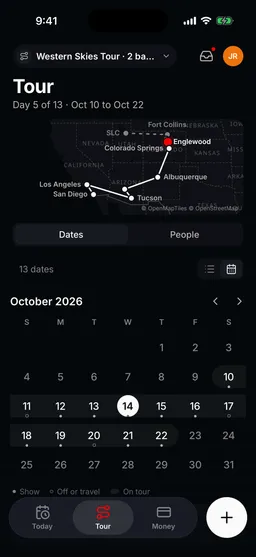
- Open the Tour tab, with Dates picked at the top, and tap + in the bottom bar. (On a tour with no dates yet, tap Add a date.)
- Pick the Date. It starts on the day after your last date.
- Choose the Day type: Show, Travel or Off. There are a few more, like Internal for a rehearsal.
- Pick a Status (see below).
- For a show, search for the Venue by name or address. For a travel day, search for Where to.
- For a show, you can add the Guarantee and Door deal now or later.
- Add Notes if you like, and tap Add. The new day opens.
Attach a venue
A show day needs a venue so the day sheet has an address and the drive times work.
- Click the date in the Dates list.
- Under Where’s the show?, click Add a venue.
- Search the venues other bands have played, or any address, and pick the right one. Click Attach to confirm.
- Playing a DIY space Google does not list? Choose Add a venue by hand, fill it in, and click Attach.
- On the phone, you pick the venue when you add the date. To change it, open the day.
- On the venue card under Venue, tap Show details. Venue and show opens.
- Change the Name or the Address, and tap Save.
Show day, travel day or day off
- Click the date in the Dates list.
- At the top of the date, click the kind of day (it reads Show, Travel or Day off).
- Choose Show, Travel or Day off.
- Open the day, tap the menu button next to its name (Day options), then Edit day.
- Under Kind of day, choose Show, Travel or Day off, and tap Save.
Where each show stands
Shows move from an idea to a signed contract. The status says where each one is, so nobody books a hotel for a show that is only on hold.
- Planning: you want the date, nothing is asked yet.
- Inquiry: you have asked the venue or promoter.
- Hold: the venue is holding the date for you. When someone else wants the night, turn on Challenged and set a Decide by date. On the web you can also set Which hold you are (1st, 2nd, 3rd).
- Confirmed: the show is happening.
- Contracted: the paperwork is signed.
- Cancelled: the show is off.
On the web, click the status at the top of a date and pick a new one. On the phone, open the day, tap the menu button (⋮) next to its name, then Edit day, and change Status.
Fill in the day
- Open the day from the Tour tab. (On Today, use the + in the bottom bar instead, step 5.)
- Next to Schedule, tap Add (on an empty day, tap Add a schedule item). Choose a type like Load in or Soundcheck (tap More for every type), set when it Starts, and tap Add. Turn on Notify the team to send a reminder before it.
- Next to Tonight, tap Add for the hotel: the Name, Address, Check in and Check out, and the front desk Phone. Tap Save.
- Tap the menu button (⋮) next to the day’s name, then Edit day, and write anything the band needs to know under Notes, like which door to load in through. Tap Save.
- A shortcut: on Today, the + in the bottom bar adds to the day you are looking at, like a Schedule item, a Guest or a Note.
- Click the date in the Dates list.
- Open the Schedule tab and click Add a time. Choose a Type, set when it Starts, and click Add. Want the team reminded before it? Pick the type from Quick add instead: that opens the full form, with Notify the team.
- Back on Overview, click Add a place under Lodging for the hotel (or Add, once the day has one).
- Click Add notes under Notes (or Edit, once there are some) and write anything the band needs to know, like which door to load in through.
Switch between tours
- Click the tour name near the top of the left rail.
- Pick the tour. All tours opens the full list in the Library.
- On Today, Tour or Money, tap the tour name at the top.
- Under Switch tour, pick the tour. All tours opens the full list, and Switch team moves you to another band.
Next: invite your band and crew.
Still stuck?
Email scott@tourouter.com and a person who works on Tourouter will write back. Tell us which screen you were on and whether it was the phone or the web.
Planning a tour is free, with no time limit.
Start planning free