


Invite your band and crew
Bring people onto the team, pick what each person can do, choose who is out on this run, and keep sensitive contacts to the people who need them.
On this page
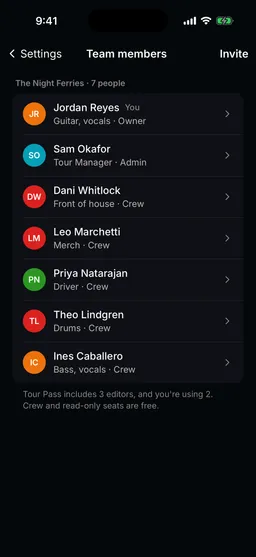
Your team is your band in Tourouter: everyone who works on your tours. Each person on the team has a role that decides what they can do. Most of the band and crew only need to see the plan, and those seats are free.
Pick a role
- Owner: the person who runs the account. Can do everything, including billing.
- Admin: can add, change and delete anything on the tour.
- Editor: can add and change things, but not delete them.
- Read-only: can see everything, including sensitive contacts, and change nothing.
- Crew: can see the plan. Cannot see the details of sensitive contacts, and cannot open Money.
Invite someone
- Tap your picture at the top of the screen to open Settings, then tap Team members.
- Tap Invite.
- Enter their Email.
- Add a Phone number if you want them to get day sheets by text too. This is optional.
- Choose a Role. It starts on Crew.
- If Add to tours shows, pick the tours they should be on.
- Tap Send.
- In the left rail, open Settings, then Team members.
- Click Invite.
- Enter their Email.
- Add a Phone number if you want them to get day sheets by text too. This is optional.
- Choose a Role. It starts on Crew.
- If Add to tours shows, pick the tours they should be on.
- Click Send.
What they get, and how they join
They get an email inviting them to join your team, with an Accept invitation button, and a text too if you added their number.
- They open the link and create an account with the email address the invitation was sent to, or log in if they already have one.
- The invitation is accepted as soon as they are in. In the app, it is also waiting under Invitations at the top of Settings, with a Join button.
If they sign in with a different email address, the invitation will not find them. They need to log out and use the address it was sent to.
Pending invitations
- On Team members, look under Invited.
- Tap Resend to send it again, or press and hold the invitation and choose Cancel invite.
- On Team members, look under Invited.
- Click Resend to send it again, or open the menu next to it and choose Cancel invite.
Change a role or remove someone
- On Team members, tap the person.
- Choose a new Role and tap Save. Only the owner can change roles.
- Or tap Remove from team, then Remove to confirm.
- On Team members, click the person.
- Choose a new Role and click Save. Only the owner can change roles.
- Or click Remove from team, then Remove to confirm.
Choose who is out on this run
Not everyone on the team goes on every tour, and some people only come out for part of one. The touring party is who is actually out on this run. Once a tour has a touring party, only the people in it get that tour’s day sheets and push notifications, and only on the dates they are out.
- Open the tour and choose People in the left rail.
- On a tour with nobody on it yet, click Add your band and your day sheet list to start from your team.
- To add someone else, click + (Add to the run). Enter their Name and What they do, like “monitors”. They do not need an account. Click Add.
- Someone only out for part of the run? Set Joins and Leaves to the days they arrive and go home.
- Turn Gets the day sheet on or off for each person.
- Tap Tour, then People at the top, then Touring party to see who is on the run. It is also in Settings, under the tour’s name.
Keep sensitive contacts private
Some contacts, like a talent buyer or an agent, are not for everyone. Mark them sensitive and crew see the name but not the details.
- Tap Tour, then People at the top, and tap the contact. (Or tap + in the bottom bar to add a new one.)
- Tap Edit.
- Turn on Sensitive.
- Tap Save.
- Open Library, then Contacts, and click the contact.
- Click Edit.
- Turn on Sensitive.
- Click Save.
Next: send the day sheet.
Still stuck?
Email scott@tourouter.com and a person who works on Tourouter will write back. Tell us which screen you were on and whether it was the phone or the web.
Planning a tour is free, with no time limit.
Start planning free