


Settle a show
Record what the promoter actually paid at the end of the night, check it against the deal, and post it to Money.
On this page
Settling is the money conversation at the end of the night. The promoter shows you how many tickets sold, what the door took, and anything they took off the top for sound or catering, and then pays you. Settling the show in Tourouter writes all of that down next to the deal you agreed, so you can see whether you were paid what the deal said, and the money lands in your tour’s Money.
Before the show: put the deal on the date
The settlement checks the night against the deal, so put the deal in first. You can do this any time before the show.
- Open the show day from Today or the Tour tab.
- On the venue card under Venue, tap Show details. (Tapping the Guarantee on the card goes straight to the deal.) Venue and show opens.
- Open Deal.
- Choose a Deal shape:
- Door split: a share of the door, and nothing guaranteed
- Guarantee vs. percentage: whichever is greater on the night
- Guarantee + backend: the guarantee, plus a share above a break-even
- Flat, no split: the guarantee, whatever the room does
- Fill in Guarantee, Deposit, and the split for your shape.
- If the venue takes a cut of merch, fill in Merch cut.
- Tap Save. The deal reads back in plain words on the Deal row so you can check it.
- Open Dates in the left rail and click the show date.
- On Overview, click Edit next to Venue and show.
- Under Deal, pick how the night pays: Door split, Guarantee vs percentage, Guarantee plus backend or Flat, no split. These are the same four shapes as the phone.
- Fill in the Guarantee, the Deposit and the split for your shape.
- If the venue takes a cut of merch, fill in Merch cut.
- Click Save.
Settle a show on the phone
- Open the show day and scroll to Money. On the Settlement row, tap Settle the show. (Or open Money, tap Settlements, and pick the show.)
- Check The show pays at the top. It works out what the deal should pay from the numbers you enter. The deal under it shows the guarantee and splits you agreed.
- Under The night, enter Tickets sold and Gross door.
- Under Taken off the top, tap Add a deduction for each thing the promoter took off, like sound, lights or a catering buyout. Enter what it was for and the amount as a negative number.
- Under Merch, enter Merch gross and the Venue cut.
- Under What you were paid, enter the Show payout.
- Add anything worth remembering under Notes.
- Tap Settle and post to Money. The Settlement row on the day then says whether you were paid exactly what the deal said, or how much over or under it.
Not finished talking to the promoter? Tap Save at the top and come back to it from the same row, which now says Continue settling.
Settle a show on the web
- On or after the show’s date, open it and go to its Money tab, then click Settle the show. (Or open Money in the left rail, click Settlements, and pick the show.)
- Check The show pays at the top. It works out what the deal should pay from the numbers you enter.
- Under The night, enter Tickets sold and Gross door.
- Under Taken off the top, click Add a deduction for each thing the promoter took off, like sound, lights or a catering buyout. Enter what it was for and the amount as a negative number.
- Under Merch, enter Merch gross and the Venue cut.
- Under What you were paid, enter the Show payout. A line under it tells you whether that is exactly the deal, over it, or under it.
- Add anything worth remembering under Notes.
- Click Settle and post to Money.
Not finished talking to the promoter? Click Save as a draft. The show’s Money tab then says Continue settling.
What settling does
When a show is settled:
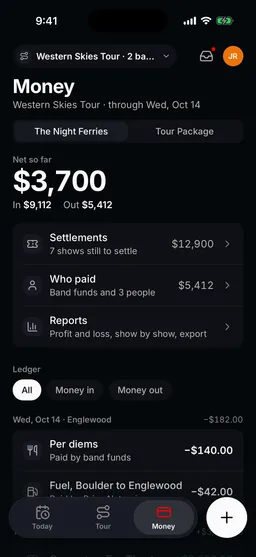
- The payout is added to your Money as income, and a separate merch row is added for merch after the venue’s cut.
- The show’s guarantee leaves Expected, and the money moves into your net so far.
- The show is marked settled, with who settled it and when.
Those rows come from the settlement, so you change them by changing the settlement, not by editing them in the ledger.
Fix a settled show
- Open the show day and tap View settlement, or pick the show from Settlements.
- Tap Reopen settlement. The posted rows come back out of Money.
- Make your changes and tap Settle and post to Money again.
- Open the show’s Money tab and click View settlement.
- Click Reopen settlement. The posted rows come back out of Money.
- Make your changes and click Settle and post to Money again.
Settling on a Tour Package
When two or more bands share a tour, the host band’s settlement asks How was the show paid?
- Promoter paid each band: everyone settles their own deal on their own settlement.
- Promoter paid us for the package: the host settles the whole payout and adds each band’s share under Splits. Each band’s share is posted to that band’s own Money.
These options are in the phone app and on the web. See Tour Packages for how the money is shared.
Who can settle
Still stuck?
Email scott@tourouter.com and a person who works on Tourouter will write back. Tell us which screen you were on and whether it was the phone or the web.
Planning a tour is free, with no time limit.
Start planning free